Product Guide
Embed Journal Listing
You can embed a journal on your website so that changes in the journal are reflected immediately
Most website builders have an Embed feature. This lets you copy and paste a short code snippet into the website which can then draw data from another source. This is they way things like videos get embedded into websites.
Flojourn has the ability to generate embed code so that you can have journal entries appearing on your website. You must have the Club Tier to use this feature.
The great thing about embeds is that you copy and paste the code into your main website once, and then when new entries are added to the journal, these automatically appear on the website.
Embedding a journal can be used for different purposes.
Show event listings
If you want to show upcoming events that you are promoting or organising and these events are listed in one of your journals, you can create an embed to display these.
This would be an easy way to ensure the latest events are shown the website without needing to go to the website and do manual editing.
Reminders and Activity
You may want to let your customers or members know about things that are happening and give them reminders. By placing a journal on your website you can quickly add entries to promote up coming activities or post last minute notices if things change.
News Updates
Sometime a blog on a website is too heavy for just letting people know the latest news about your group or activity. Using a journal as a way of displaying updates like this would make it easy to report on things that have happened or quickly with every one a happy holiday etc.
A Taster of Your Other Journals
You may have several journals for your group and would like all of your people to use them to find out what is going on and to participate more in the discussions. By embedding a journal on your website, you give people a taster of what your other journals might be like and make them keener to read those.
Embed Dialog
To create an embed you start in the journal you want to show. Then click on the Export button in the Journal Info panel. This opens the export dialog.
Filter
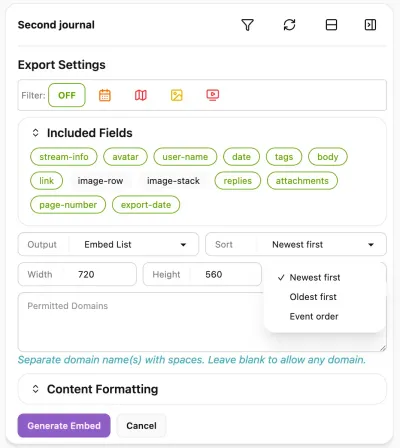
You can filter the entries to only include events, or entries with maps or videos etc.
Included Fields
You can also choose which bits of information will be shown in the list. For instance you may not want to show the avatar of the entry creator on your website.
Sort, Count, Width and Height
You can specify the dimensions of the embed as it is to appear on the website, and you can also choose to sort the entries oldest first, newest first or in event date order. You can limit the number of entries.
Colour Styles
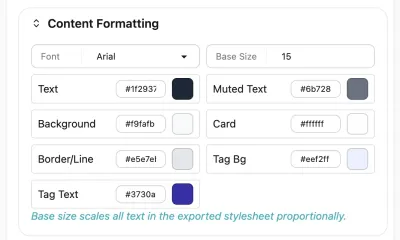
To match the appearance of your website you can specify the colours to use on the output list so it is in harmony with your base colour scheme.
Embed Code
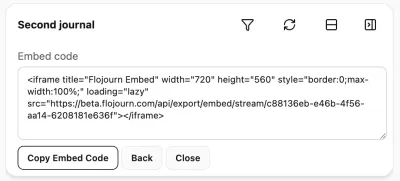
Once you have chosen your settings, you are presented with a code block which you can copy and paste into the embed on your website.