Product Guide
Quick Overview of the Interface
This section is intended to be a quick overview of the areas of the app and defines some terminology.
NavList
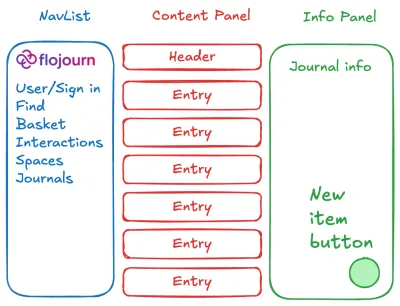
The NavList is a sidebar shown on the left hand side of the window on large screens or as the main menu on small screens. It contains some standard functions and a list of any journals that you have followed or created. It is the central point where you begin your work with Flojourn.
Content panel
The main content panel is where all journal entries are shown along with most editing tasks (eg settings, journal options, searches and so on). On a small screen all information is shown in the main panel.
Info Panel
The info panel is shown on the right hand side of the window on large screens to show supplementary information about the content in the main panel. On small screens this information can be shown by clicking an icon button in the header of the content panel. This is often details of the journal when that journal's entries are shown in the content panel. It may also show help guiders when the editing information in the main panel.
New Item Button
In the bottom right corner of the screen there is a round button with a plus sign on it. Clicking this allows you to create the three main elements: Entries, Journals and Libraries.
Find Journals
The Find Journals item in the sidebar navigation shows a search facility to find new journals. You can search for words used in the name, about or topics of the journal. If you have a lot of journals in your sidebar, you can also use it to search for journals you already follow.
Basket/Recent
The Basket / Recent item in the sidebar navigation holds entries that you may want to attach to other entries. Entries are automatically entered into the recent list as you visit or write them. You can choose to add an entry to the basket to maintain a shorter more focused list of entries.
Interaction
The Interaction item in the sidebar navigation shows messages to alert you to activity by others on your journals. Some may require action such as granting access to your journal, others may simply let you know replies have been added. You also get messages if you have been granted access to a journal by that journal's creator.
Spaces - Themes
Partitions allow you to divide up the journals you created or follow into separate sets, usually for your different major uses of Flojourn. For instance if you use it to organise your work, and also use it to collect information about stamp collecting, you could create two different partitions which keep journals used in these separate tasks apart. When you choose the work partition only work related journals appear in the side bar.